
When you single‑click an activity on the Home dashboard, Paxalia shows every session you uploaded for that activity on the selected date.
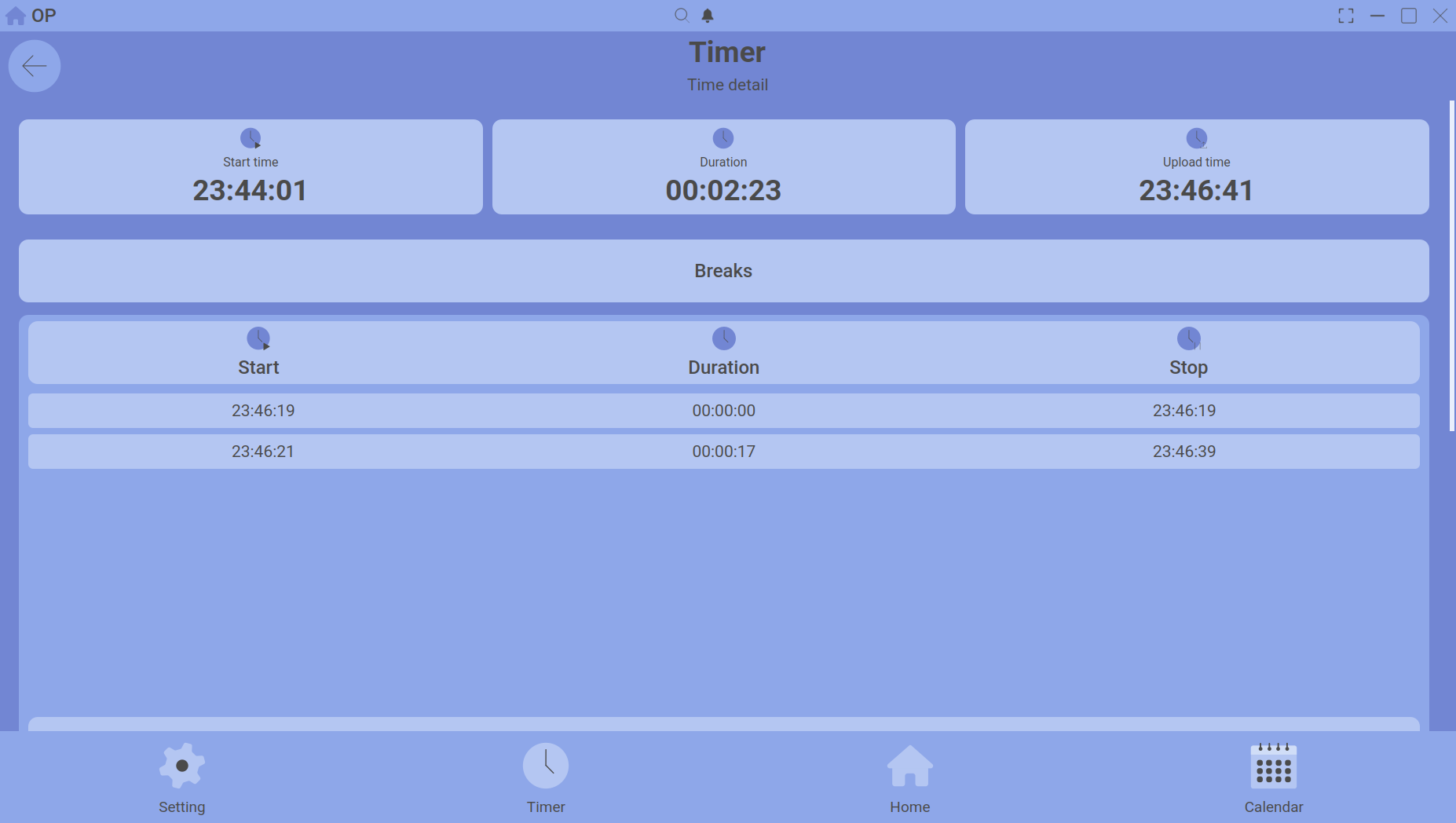
Clicking an activity opens a list of all its sessions for the day.
What you see
| Column | Meaning |
|---|---|
| Start Time | The clock time when the session began. |
| Duration | Total elapsed time (including pauses). |
| Upload Time | The pure working time after subtracting all breaks. This is the number that counts toward your totals. |
| Timeline | The category assigned to the session (if any). |
Navigation
- Click any session row to select it.
- Double‑click a row to open the Session Deep Detail panel.
- Use the date selector at the top to view sessions from other days.
Editing or deleting sessions
In the detail list, you can quickly edit the timeline assignment or delete a session. Deletions are permanent – the session will also be removed from your calendar and summary totals.
For the full breakdown (breaks, timeline history), open the Session Deep Detail panel.