
Notes are the simplest way to capture a thought, reminder, or idea and attach it to a specific date. Think of them as sticky notes for your calendar.
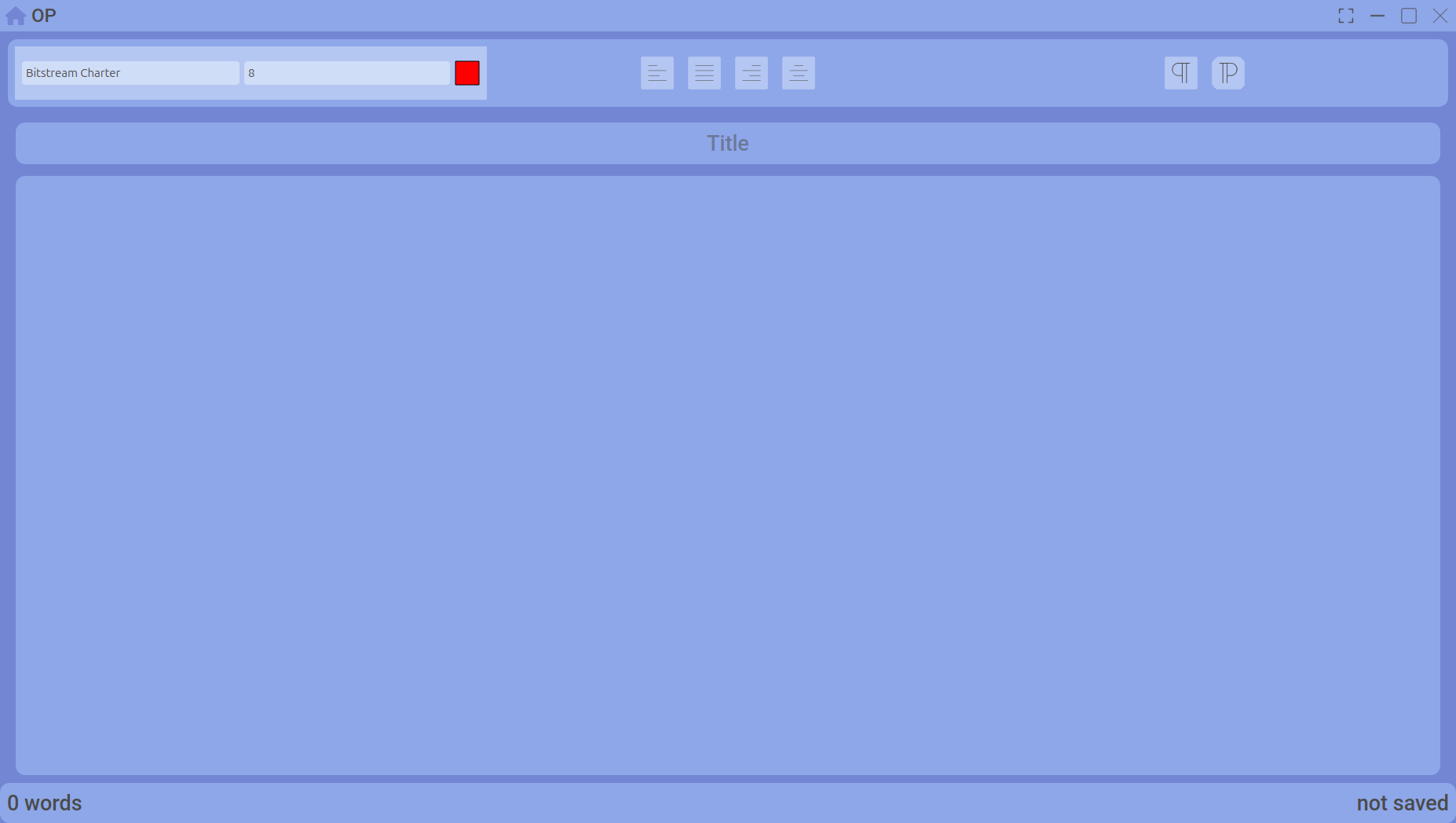
The note editor – plain text, always linked to a date.
Adding a note
- On the Calendar, select a date.
- Click the Notes tab.
- Click Add Note (or the + button).
- Write your text and save.
Viewing and editing
- All notes for a date appear as a list. Click any note to edit it.
- Delete a note by clicking the trash icon next to it.
Where notes appear
Notes are visible on the Calendar for their assigned date. They also appear in the Summary tab of the Calendar and in the daily summary cards on the Home Dashboard.
Use cases
- A quick reminder for tomorrow ("Send invoice to client")
- An idea you had during a focus session
- A reference link or phone number you need on a specific day
For longer tasks with progress tracking, use Goals instead.