
Customize Day lets you create reusable daily templates – a set of timing blocks, notes, and goals that you can apply to any date with one click. No more rebuilding the same schedule every morning.
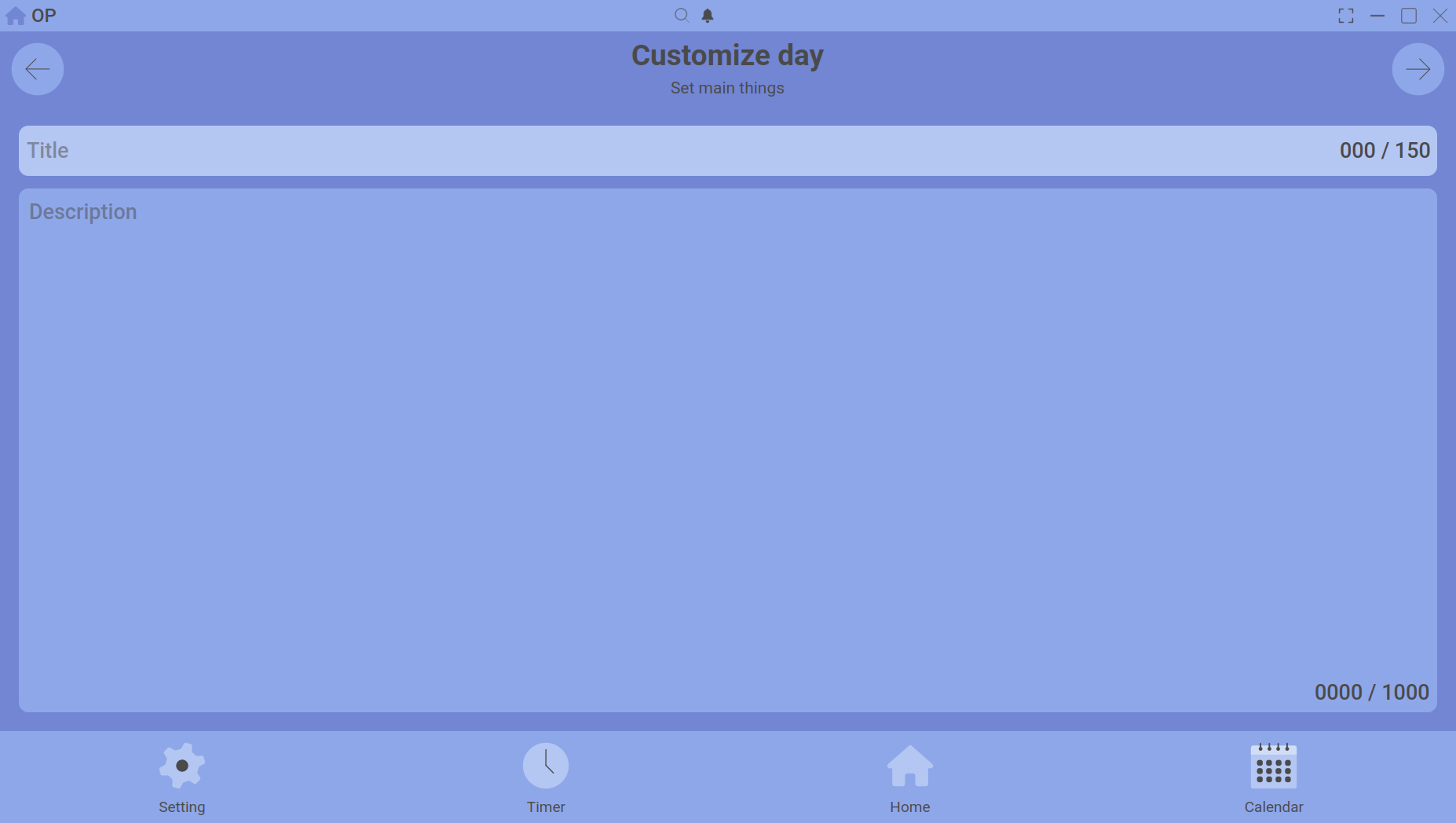
Building a template – add blocks, notes, and goals to define an ideal day.
Creating a template
- Go to Calendar → Customize Day (or from the sidebar).
- Click Add New Template.
- Give it a name (e.g., “Deep Work Day”, “Weekend Routine”).
- Add timing blocks, notes, and goals just like you would on the calendar.
- Save the template.
Applying a template
On any Calendar date, click the Apply Template button, pick your desired template, and the timing grid, notes, and goals fill in automatically for that day.
Editing and deleting templates
Templates can be edited at any time – changes do not retroactively affect days where the template was already applied. To delete a template, open it and click the delete button.
Pro tier limit
Free users can store up to 5 templates. Paxalia Pro increases this limit to 100, so you can create a template for every kind of day.
Use cases
- A “University Day” template with lecture blocks, study sessions, and assignment goals.
- A “Freelance Day” template with client work blocks and admin time.
- A “Rest Day” template with light notes and zero work blocks.
Templates make planning fast and consistent. Start building your first one today.