
The Session Deep Detail panel shows everything about a single focus session – every start, pause, resume, and the final upload.
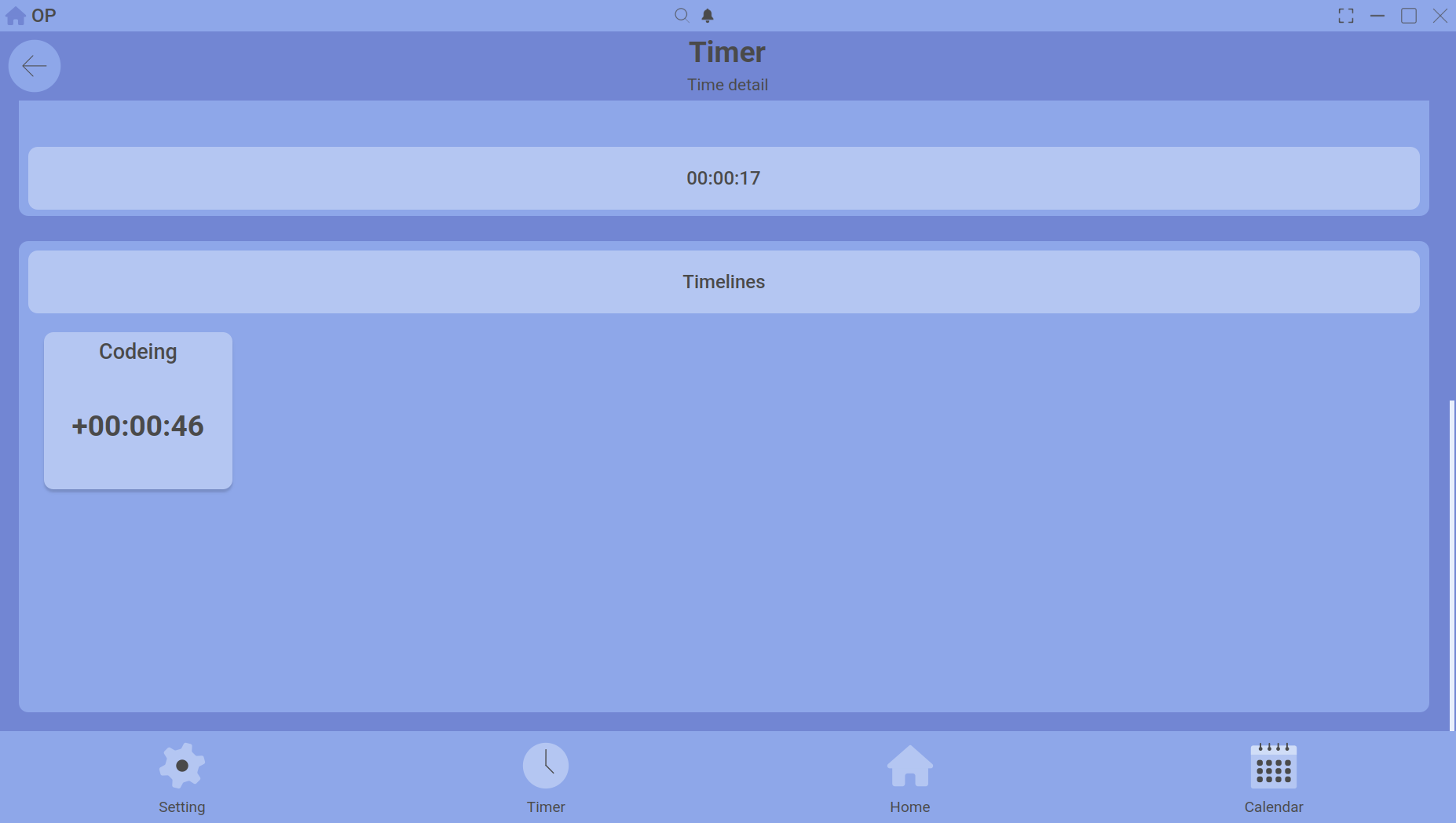
The deep detail panel breaks a session down into start, breaks, upload, and attached timelines.
How to open it
You can reach the deep detail panel in two ways:
- On the Home dashboard, click an activity, then double‑click any session in the list.
- On the Calendar, find a timeline entry and double‑click it.
What’s inside
| Start Time | The exact moment you pressed Start. |
| Duration | The full span from Start to Upload (includes breaks). |
| Upload Time | The net work time after removing all breaks. |
| Breaks | Every pause you took, listed with its duration. A total break time is shown at the bottom. |
| Timelines | The categories you attached before or during the session. You can change the timeline here if needed. |
Editing the timeline
Use the timeline dropdown inside the deep detail panel to assign a different category. The change is immediate and updates all related totals (Home dashboard, Calendar summaries).
Deleting a session
At the bottom of the panel there is a Delete Session button. This removes the session permanently from your history and all summaries. There is no undo – use it carefully.
For more on how sessions are stored, see the Session Upload & History guide.