
Every session you finish is saved to your personal history. You can browse past sessions, see their details, and even inspect break durations.
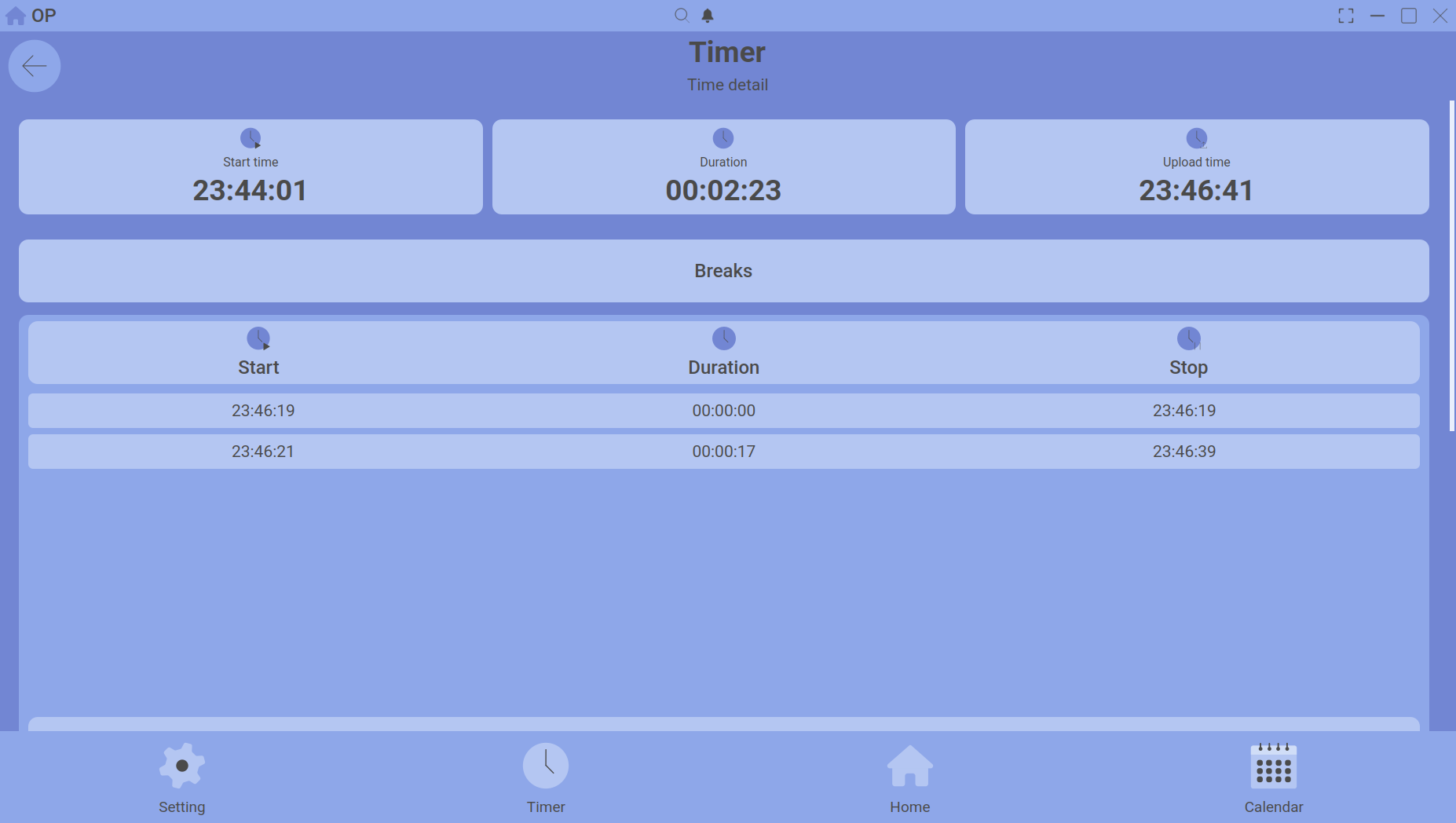
A session’s detail panel showing start time, duration, upload time, and breaks.
Where uploads go
When you click Upload:
- The session is saved to today’s date on your Calendar.
- It appears in your Home Dashboard activity list.
- If a timeline was assigned, the time is added to that timeline’s total.
Viewing your session history
You can view past sessions from several places:
- Home Dashboard – the activity list shows today’s sessions. Click any activity to see its details.
- Calendar – navigate to any date and see all uploaded sessions for that day under the Timeline or Summary tabs.
- Activity Comparison – select two activities on the Home chart to compare their average times over a date range.
Session deep detail
Double‑click on any session (from the Home activity list or Calendar) to open its full detail panel. This shows:
| Start Time | The exact clock time the session began. |
| Duration | Total elapsed time from start to upload (including pauses). |
| Upload Time | The pure working time after subtracting all breaks. |
| Breaks | A list of every pause you took, with the time you were away. |
| Timeline | The category assigned to this session. |
Can I edit or delete a session?
Yes. In the session detail view, you can modify the timeline or delete the session entirely. Deleting is permanent and cannot be undone.