
Goals are tasks with a target date or a date range. You can mark them as complete and track your progress over time. They’re ideal for anything from daily to‑dos to long‑term milestones.
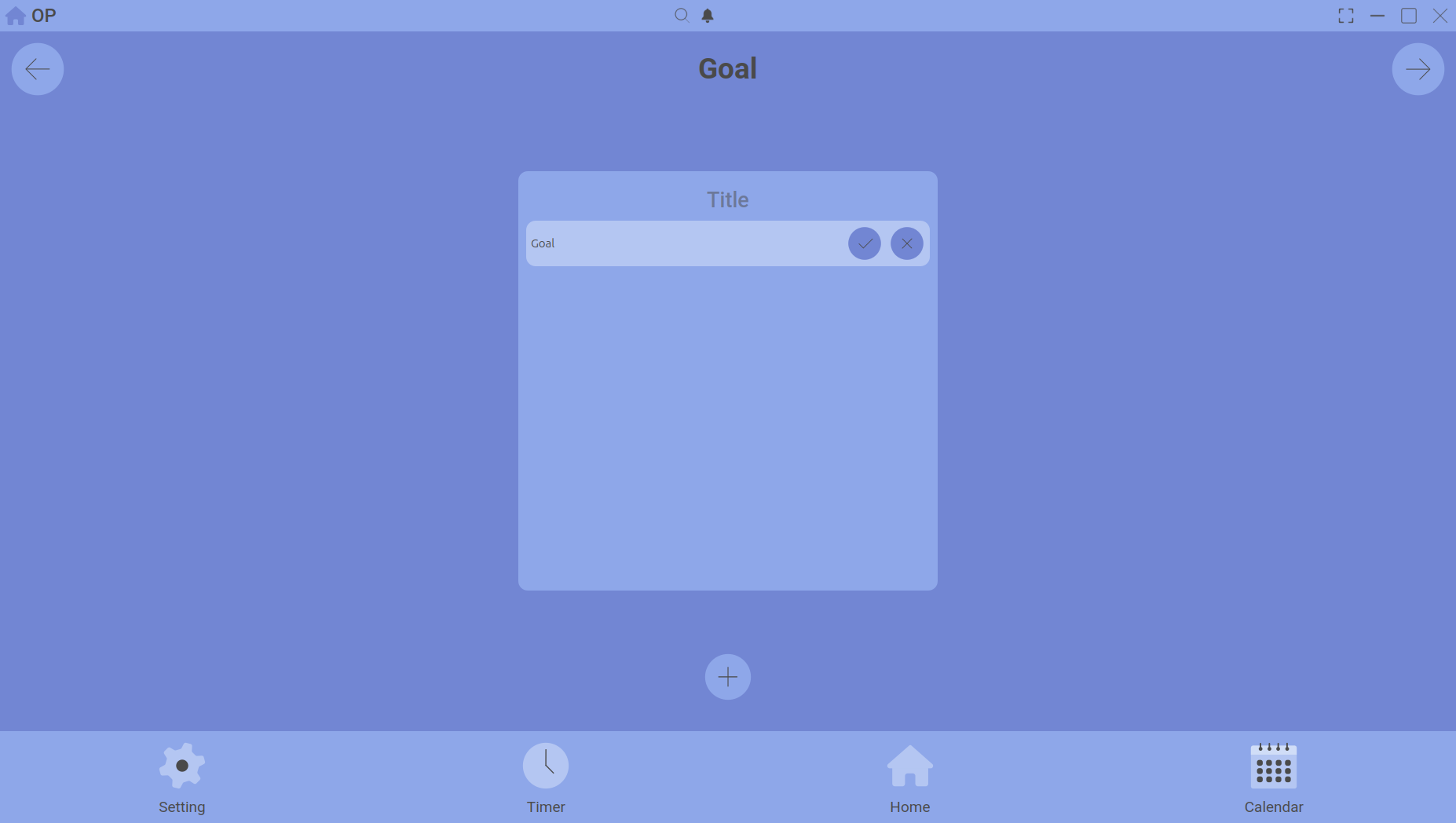
A goal displayed on its target date with a completion indicator.
Creating a goal
- On the Calendar, select the goal’s target date (or start date for a range).
- Switch to the Goals tab.
- Click Add Goal.
- Enter a title, an optional description, and choose a Single Date or Date Range.
- Save. The goal now appears on the selected date(s).
Tracking progress
- Click a goal to edit it or mark it as complete.
- Completed goals show a checkmark and are highlighted in a different colour.
- You can view all goals (completed and pending) by navigating the calendar.
Where goals appear
Goals appear in the Summary tab of the Calendar, showing which were completed that day. The Home Dashboard also shows a summary card with completed vs. pending goals for the selected date.
Use cases
- A project deadline on a specific date
- A weekly goal that spans Monday to Friday
- A recurring daily habit you want to track
Combine goals with Timing blocks to allocate specific hours to each goal.